




Turn on AgenticSearch in your Shopify store
Replace your Shopify store's search with Serviceform AgenticSearch: add your search tool ID, switch the search on in your theme and choose the features your shoppers get.
AgenticSearch replaces your Shopify store’s search. Shoppers find products by what they mean, not only by the exact words in your product names. It also gives you AI answers, add to cart straight from the results, favourites and product recommendations in the cart.
It takes about five minutes, and you don’t edit any theme code.
Before you start
You need:
- The Serviceform app installed, with the product feed on. The search runs on your product catalogue, which the app’s product feed shares with Serviceform. If you haven’t set this up, follow Install Serviceform on Shopify first.
- Your search tool ID. Find it in the Serviceform dashboard under Tools: open your search tool, then Install. If Serviceform set up the search for you, we’ve sent you this ID.
Step 1: Open Search & selling
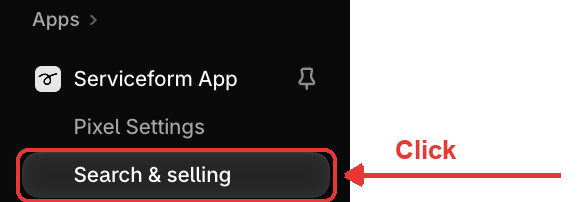
In Shopify admin, open Apps → Serviceform App → Search & selling.
Step 2: Add your search tool ID
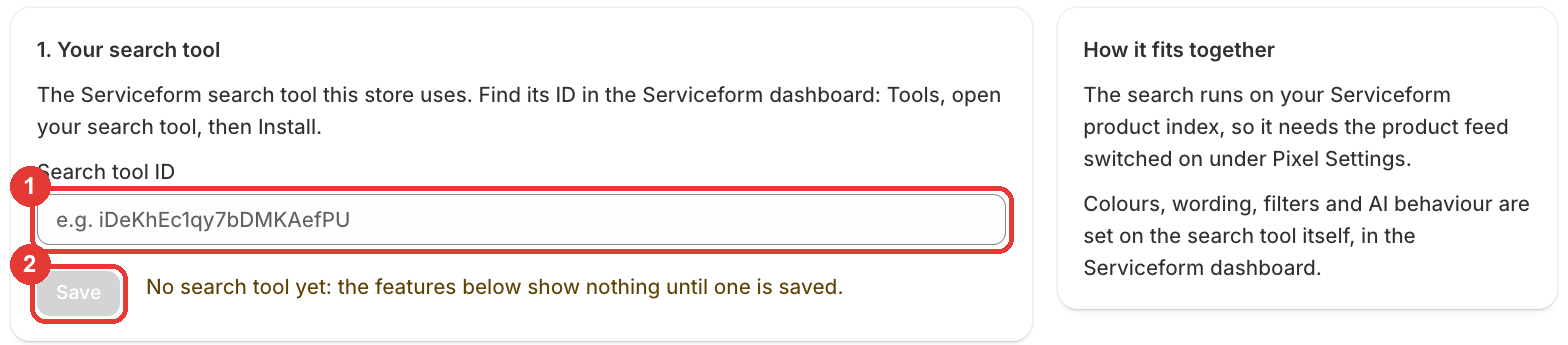
- Under 1. Your search tool, paste your ID into Search tool ID.
- Click Save.
- Check that it shows Search tool connected ✓.
Step 3: Switch the search on in your theme
Shopify keeps every app’s theme features switched off until you turn them on yourself, once per theme. Don’t skip this step: without it, nothing changes on your store.
-
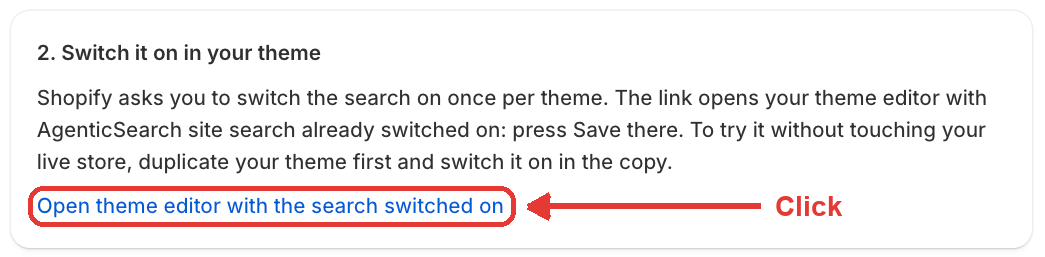
Under 2. Switch it on in your theme, click Open theme editor with the search switched on.
-
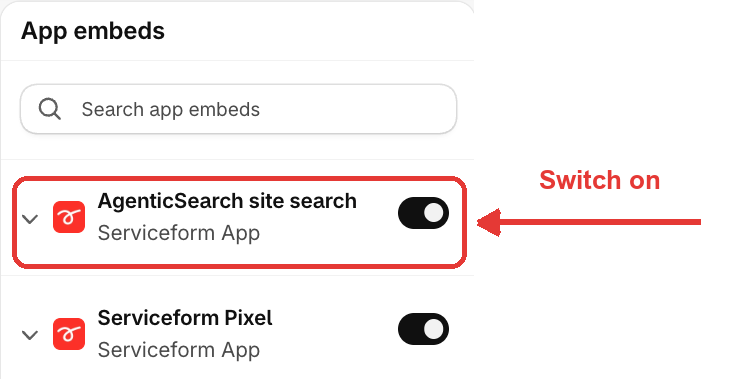
The theme editor opens with AgenticSearch site search already on under App embeds. If it’s off, switch it on.
-
Click Save in the top right corner.
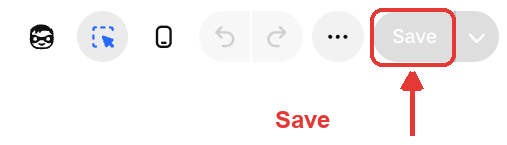
Want to try it before your shoppers see it? In Online Store → Themes, duplicate your live theme and switch the search on in the copy. Use Preview on the copy to try it, and publish it when you’re happy.
Step 4: Choose what your shoppers get
Back on the Search & selling page, under 3. Choose what your shoppers get, switch on the features you want. Each one shows on your store the next time a page loads, and switching one off brings back what your theme showed before.
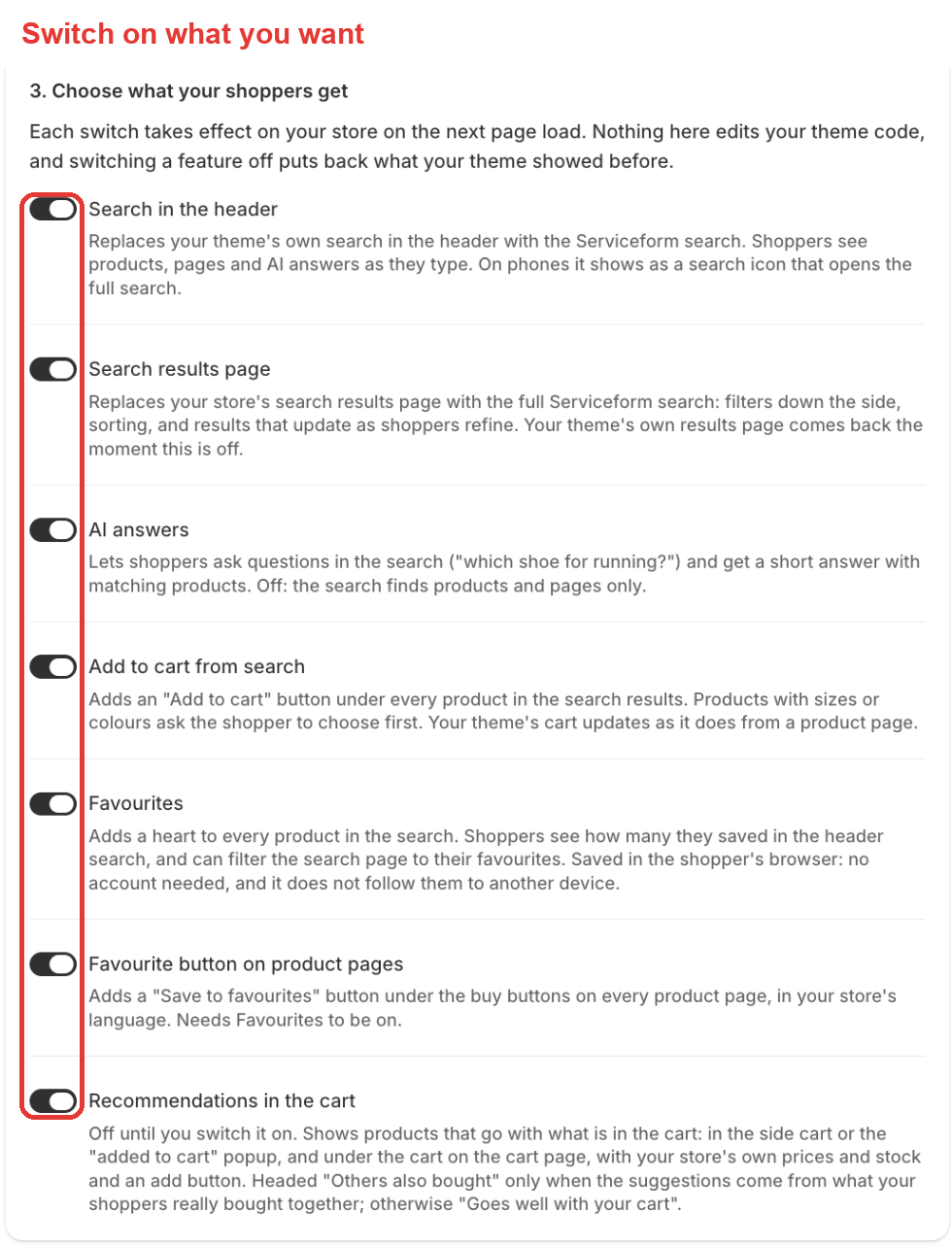
| Feature | What shoppers get |
|---|---|
| Search in the header | Products, pages and AI answers as they type, in place of your theme’s search box. On phones it’s a search icon. |
| Search results page | The full search, with filters, sorting and results that update as they refine. |
| AI answers | They can ask questions (“which shoe for running?”) and get a short answer with matching products. |
| Add to cart from search | An Add to cart button on every product in the results. Products with sizes or colours ask them to choose first. |
| Favourites | A heart on every product, and a Favourites filter on the search page. Saved in the shopper’s browser, so they don’t need an account. |
| Favourite button on product pages | A Save to favourites button under the buy buttons. Needs Favourites on. |
| Recommendations in the cart | Products that go with what’s in the cart, in the side cart and on the cart page. Off until you switch it on. |
That’s it. Search on your store and you’ll see AgenticSearch.
Reviews on search results
If your products have reviews, the search shows each one’s stars and number of reviews, as your product pages do. It reads Shopify’s product rating and the ratings from Loox, Judge.me, Yotpo, Stamped and Okendo. The stars show once Serviceform has synced your catalogue.
To hide them, go to Online Store → Themes → Customize → App embeds, open AgenticSearch site search and uncheck Reviews.
Troubleshooting
| Problem | Fix |
|---|---|
| Your store still shows its old search | Check that AgenticSearch site search is on under App embeds (Step 3) and that you saved the theme. If you switched it on in a copy of your theme, the live theme doesn’t have it yet. |
| ”No search tool yet” on the Search & selling page | Paste your search tool ID and click Save (Step 2). |
| The search shows no products | Check that the product feed is on under Pixel Settings. A new catalogue can take a few minutes to sync the first time. |
| A product is missing or out of date | Products update when Serviceform syncs your catalogue. Contact us if a change hasn’t shown after a day. |
| A feature doesn’t show | Check its switch under 3. Choose what your shoppers get, then reload the store page. |
Still stuck? Contact us and we’ll help.